|
| Help | ||||||||
|
|
The process by which files are transferred to the web server is called FTP (File Transport Protocol). You have unlimited access to your web space via FTP 24-hours a day. As such, you can create and maintain your web pages on your own computer and upload files to your web site at your leisure. To use FTP you need an FTP client. We recommend WS_FTP which can be downloaded for either the PC or Mac from http://www.wsftp.com/. The following tutorial relates to WS_FTP. Microsoft FrontPage Users Configuring Your FTP Software
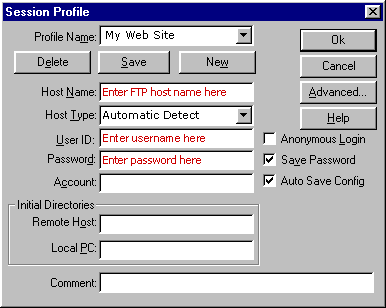
When you run your FTP client a session profile will show, similar to the one shown below for WS_FTP. The interface will vary depending on which FTP client you are using. A profile contains the information needed to connect to a web site. Creating a profile means that you don't have to enter the information every time that you connect to your site. To create a new profile click 'New'. Enter a name for the site in the Profile Name box (this can be anything you want). The Host Name should be set to the one specified in your account activation notice. Host Type should be 'Automatic Detect'. Then enter your username and password into the relevant box. To save the settings for the future select 'Save Password' and 'Auto Save Config'. All other fields can be left blank. To connect to the web server click OK.
Transferring Files
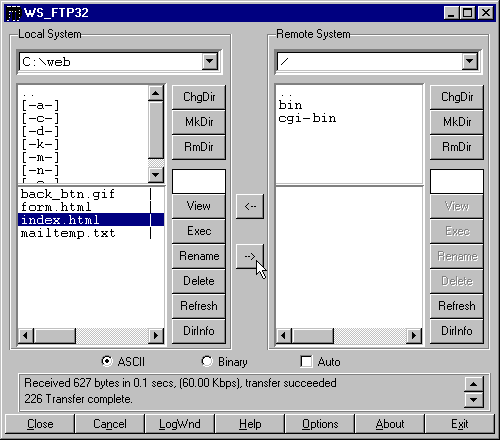
To upload a file on the left side double click on it, the file will be transferred to the web server. You can transfer files directly to the root directory or create subdirectories. As soon as a file is uploaded to the web server, it is available for all to see. To make your home page load automatically , when people go to your site, name your home page html file "index.html" in lowercase and upload it to the root directory of your account. The only system directory that you may need to use is cgi-bin, this directory is for CGI scripts. Acceptable File Names To prevent errors, we suggest naming all files in lowercase. You should not use spaces and punctuation characters. The underscore character ('_') is acceptable. It is generally easier if file names are short but have relevant meaning. < Back |